
Discovering the Creator Studio
Learn how to use the Creator Studio to customise your games.
The Creator Studio is the built-in customisation tool in Pinaplay. It allows you to modify the appearance and content of every screen in your game to create a unique experience that reflects your brand identity.
What is the Creator Studio?
The Creator Studio is a real-time visual editor that lets you customise all graphic aspects of your campaigns:
- Colours and typography
- Background images and visual assets
- Text and buttons
- Interactive widgets
Accessing the Creator Studio
To access the Creator Studio, open your campaign and click on the "Creator Studio" tab in the top menu.
The Creator Studio interface
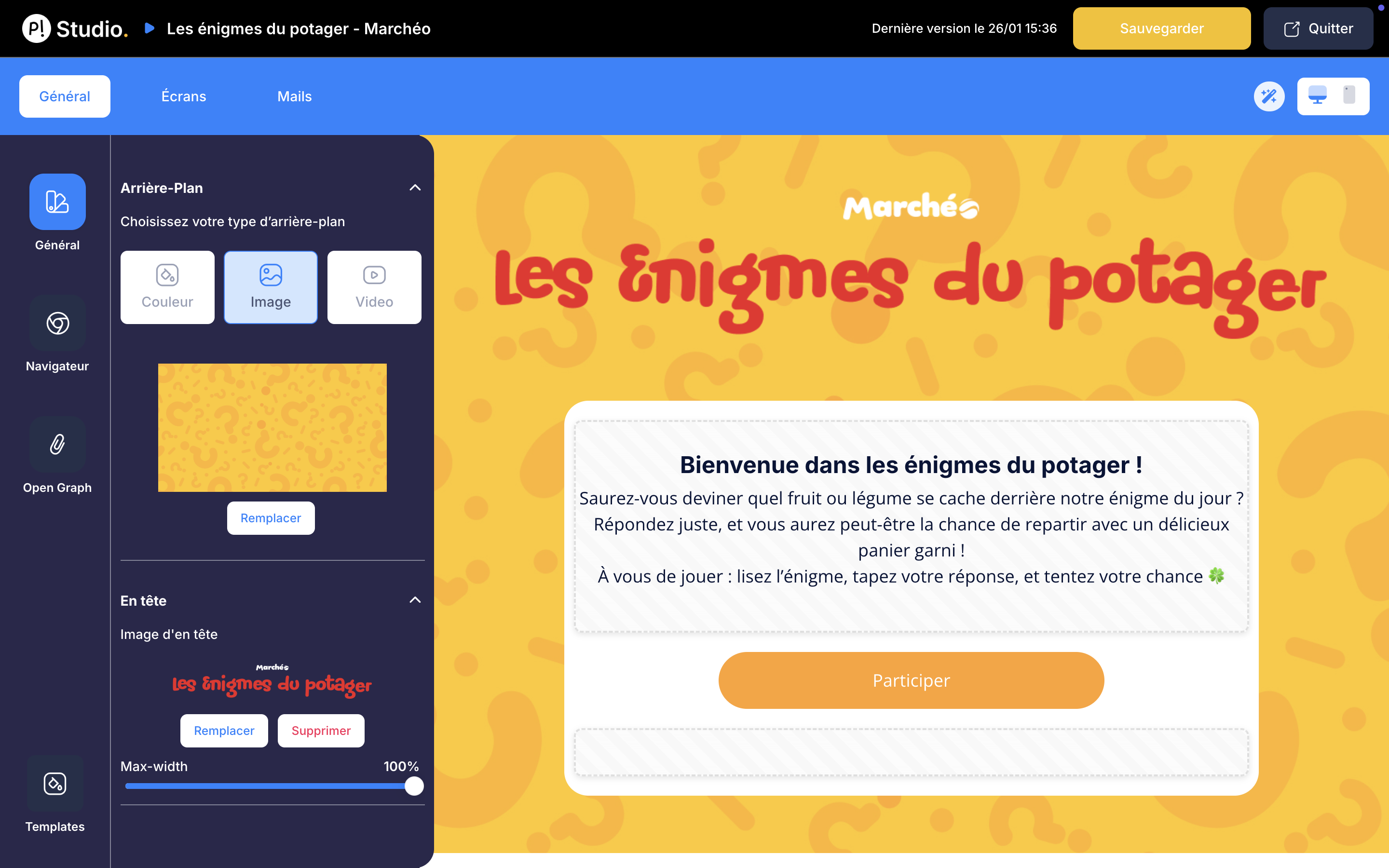
The interface is made up of several zones:
The main tabs (at the top)
- General: all customisation elements common to every screen in the game (colours, typography, logo...)
- Screens: allows you to modify the content and settings of each screen in the user journey depending on the selected game mechanic
- Emails (if enabled): customise the content of emails sent to participants and winners
The side panels (on the left)
- First column: contextual sub-menu corresponding to the main tab selected at the top
- Second column: customisation elements available based on your current position in the Creator Studio
The preview area (on the right)
The real-time preview lets you instantly see the impact of your changes. At the top right of this area, you can toggle between desktop and mobile views to check the rendering on different devices.
Remember to regularly check the mobile rendering of your game, as a large proportion of your participants will access it from their smartphone.
Editing an element
Click on any element in the preview area to select it. The properties panel will then display all available customisation options for that element.
Adding a widget
To add a new widget (image, text, button, etc.) to a screen in your game, simply drag and drop one of the widgets shown in the second column into the preview area on the right.
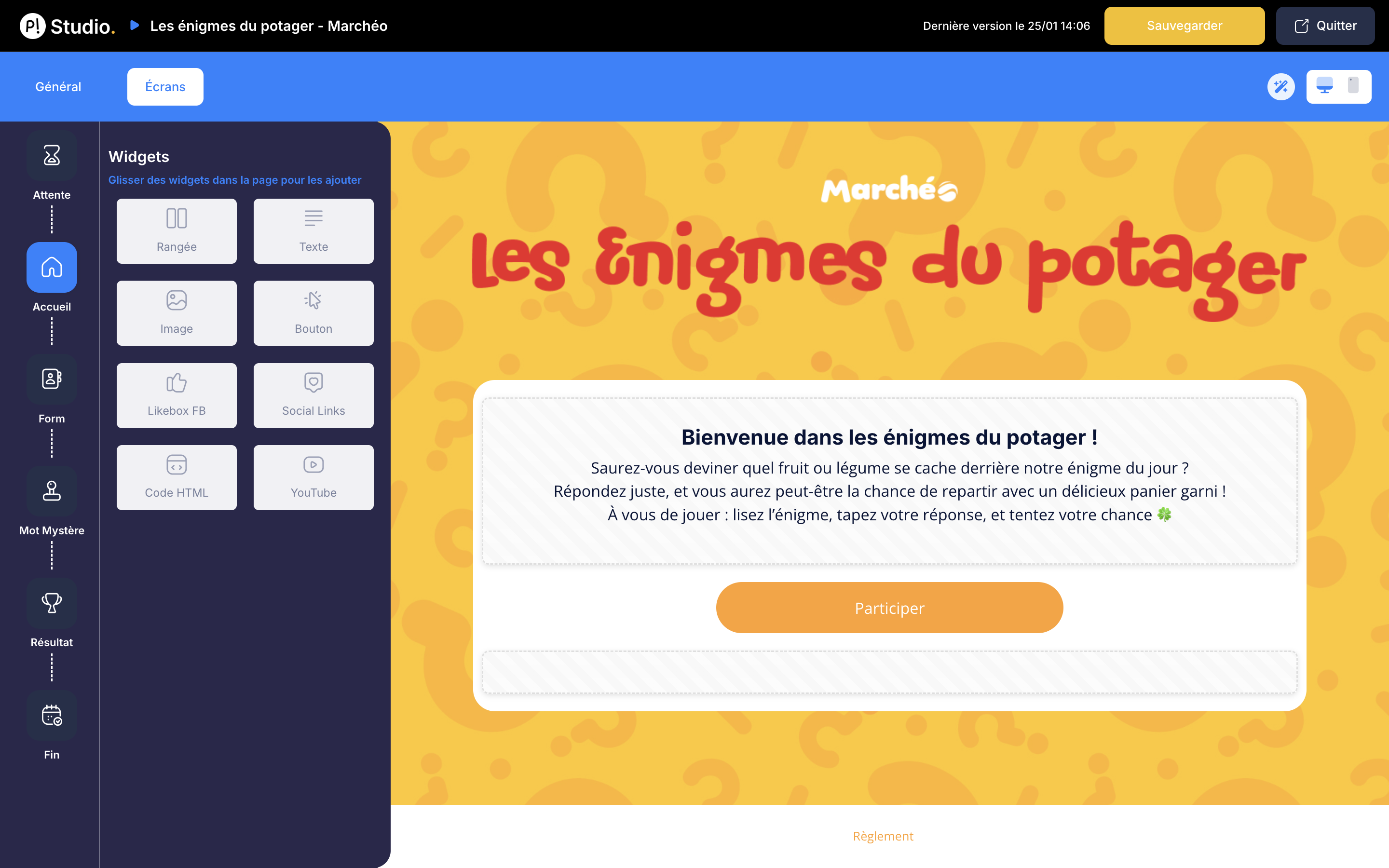
The widget will then be added to the screen and you can reposition it, customise its properties or delete it.